
The Pixelink Software Suite includes an app for capturing encoded video. By default, it is installed to the following location: C:\Program Files\Pixelink\Tools\Video Capture\VideoCapture.exe
The following is an overview of the Video Capture app:
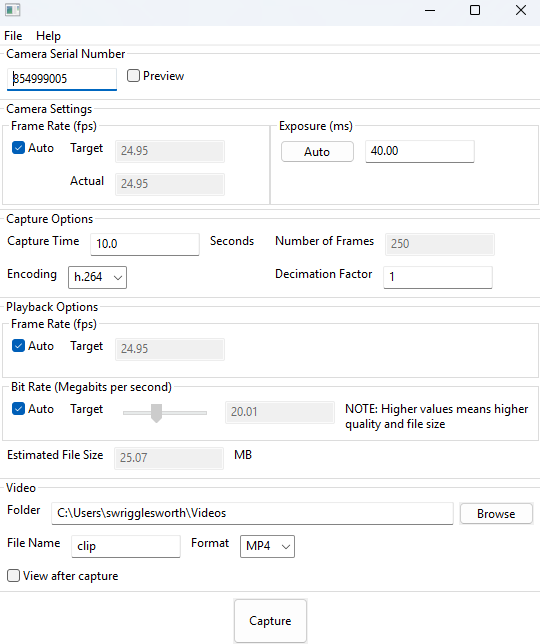
Camera Serial Number
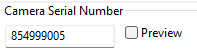
This section will show the serial number of the connected camera. Click on the "Preview" checkbox to open a pop-up window showing a live preview from the camera.
Camera Settings
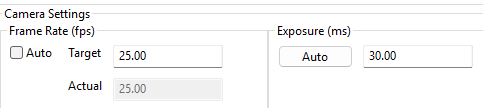
Frame Rate determines how many frames per second the camera captures.
Exposure determines the amount of time each frame is exposure for. Higher exposure times will result in a brighter image.
Clicking the "Auto" button will calculate a reasonable exposure value based on the average intensity of the image.
Capture Options

Capture Time determines the length of your video capture, in seconds.
The Capture Time (as well as the frame rate) determines the Number of Frames, displayed on the right. For example, if the camera frame rate is set (on the Basic Controls tab) to 50, and the Capture Time is set to 6.0 seconds, the Number of Frames will be 300.
The Encoding option determines your encoding standard. You can select h.264 or h.265.
h.265 has more efficient compression, but requires more processing power from the host, and might not be supported on some older devices.
Decimation Factor reduces the number of frames per second by the specified factor. Only every ‘n' frame streamed from the camera will be encoded into the video clip, resulting in a smaller file size. The default is 1, for no decimation.
For example, let's say my decimation factor is 1, and I am capturing 250 frames over 10 seconds. If I change the decimation factor to 2, I will capture 125 frames over 10 seconds. If I change the decimation factor to 5, then I will only capture 50 frames over 10 seconds.


Playback Options
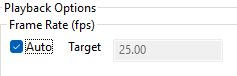
Frame Rate (fps) will determine the playback rate of your video. By default, it will have "Auto" enabled, which means that the playback rate of your video will match your camera frame rate.
Reducing the playback rate will cause your video to appear slowed down.
Increasing the playback rate will cause your video to appear sped up.
Bit Rate (Megabits per second)

Bit Rate determines the playback bit rate of the captured video. This will control the quality and size of the final captured video.
Lower values will use more compression and more processing power, resulting in a smaller file size.
Higher values will use less compression and less processing power, resulting in a larger file size.
Click "Auto" to have the application select the playback bit rate.
Video

Folder allows you to select the directory path for saving the video clip, either by using the browse button or by typing the path into the text box.
File Name allows you to enter a name for your video file
Format determines the file format of your video capture file. This app supports MP4 and AVI
Enabling View after capture will open the video file in your default video file viewer after the recording is finished.
Recording Your First Video
Note: Encoded video capture is only supported using pixel formats MONO8 for monochrome cameras, and YUV422 for colour cameras. The video capture app will automatically set your camera to the appropriate pixel format when you launch the app.
Connect your camera. If you want to change settings other than frame rate and exposure before you begin recording, you should use Pixelink Capture to make your changes.
Open the Video Capture app.
Enter your desired frame rate, exposure, capture time, and change any other settings, as desired
Enter your save location into the Folder field, and enter a name for your clip
Click "Capture" and wait for the capture to complete.
Notes, Tips, and Tricks
This app supports all PL-D, PL-U, and PL-X series cameras
This app is open-source. All of the source code for the application is included in the install
The h.264 encoding standard does not support resolutions greater than 9 megapixels. If you are using a camera with an ROI larger than 9MP with h.264, you will need to use Pixelink Capture to reduce the ROI.
h.264 must have at least 20 frames for recording. The app will not allow you to record videos of fewer than 20 frames.
The video file name does NOT auto-increment. If you are recording multiple videos, please ensure that you change the file name to avoid overwriting an existing video file.
The camera sends a large amount of data to the host, and this data is written to the disk as an intermediate file. This can be a system bottleneck.
If the capture dialog indicates that the disk cannot keep pace with the camera stream, the following will help:
Reduce the camera's Frame Rate
Reduce the camera's ROI (Region of Interest). Currently, you need to use Pixelink Capture to do this.
Use Pixel Addressing. Currently, you need to use Pixelink Capture to do this.
Add a non-1 Decimation Factor (Capture Option). This results in capturing every 'n' frame camera, effectively lowering the capture rate.
Reduce the Bit Rate. However, this is asking the encoding engine to use higher levels of compression, so more computing is required.
Turn the Preview off.